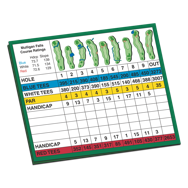
Just like on the golf course, The Scoring Machine uses scorecards to keep track of your scores and scores of your team, teammates or co-competitors…
Just like on the golf course, The Scoring Machine uses scorecards to keep track of your scores and scores of your team, teammates or co-competitors…
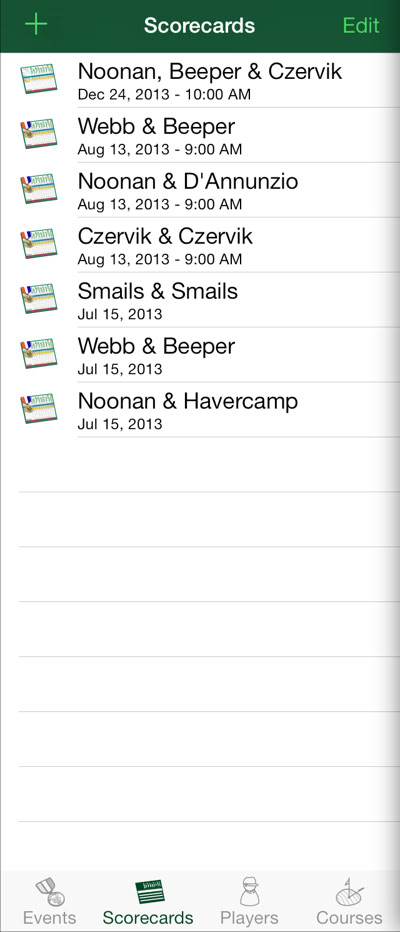
Tap Add (+) to make a new scorecard.
Tap Edit to organize, delete, or change a scorecard.
Swipe a scorecard in the list to delete it.
Pull down from the top of the list to sort.
Tap a scorecard in the list to display it on the scoreboard for entering or reviewing scores.
Deleting a scorecard will remove all the rounds on the scorecard, including players’ scores and any team scores. When part of an event, deleting a scorecard may change or remove the event.
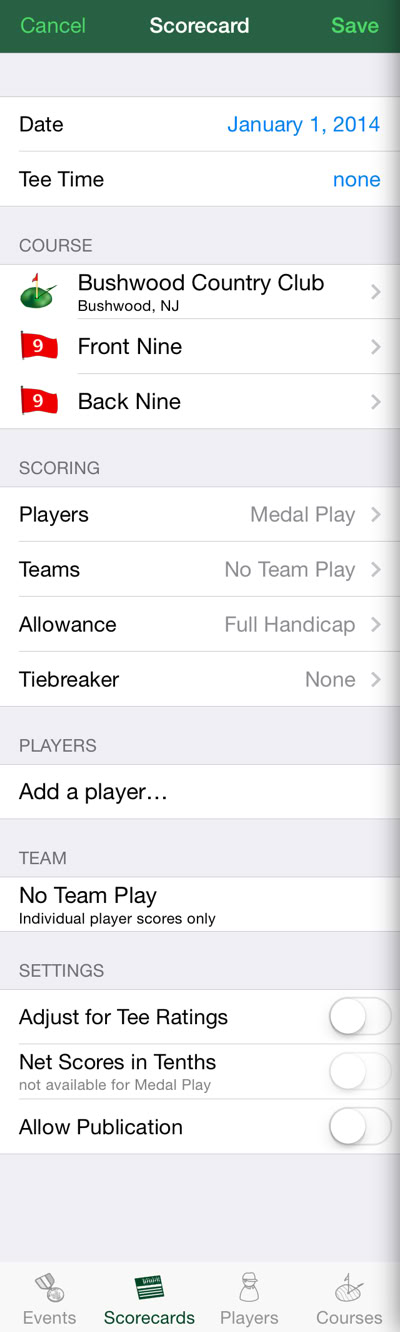
Enter the date of play… and maybe a starting time.
Select the right course and indicate the sides played. For 9-hole rounds, set the back side to no back side.
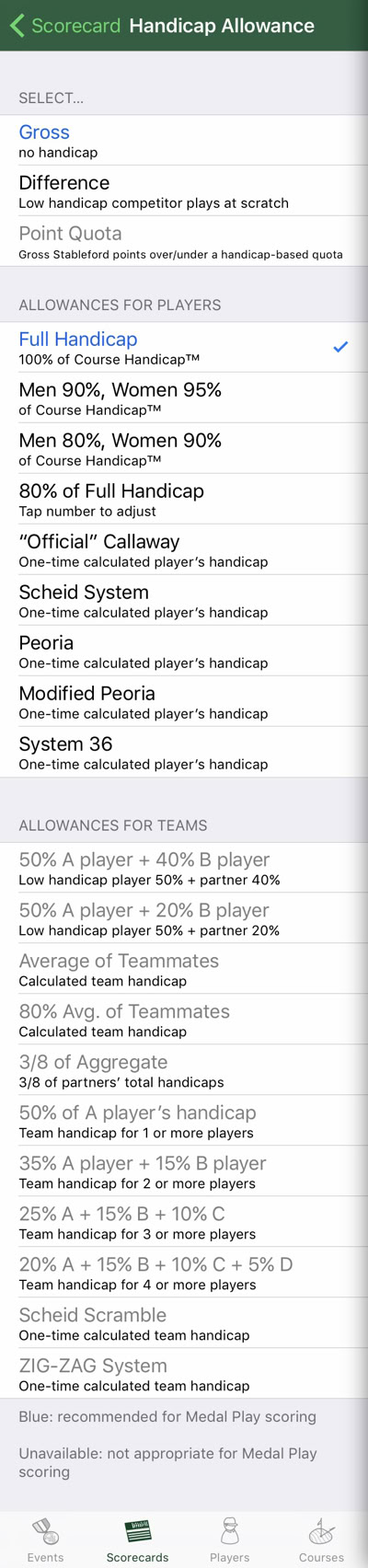
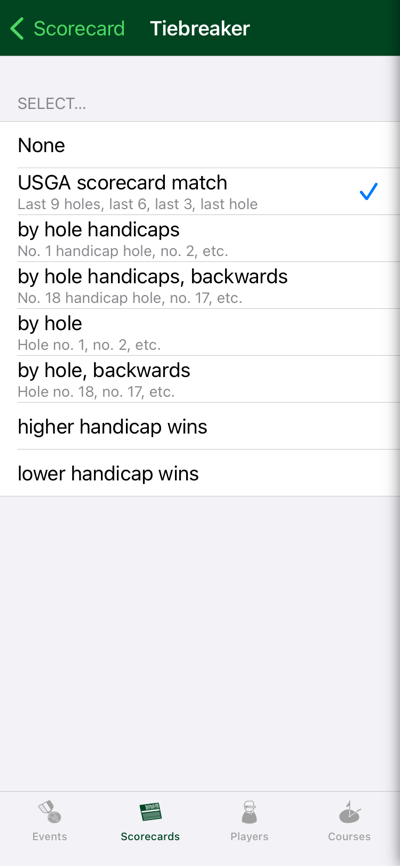
Set or adjust Players scoring, team scoring, a handicap allowance and tie breaking method if required.
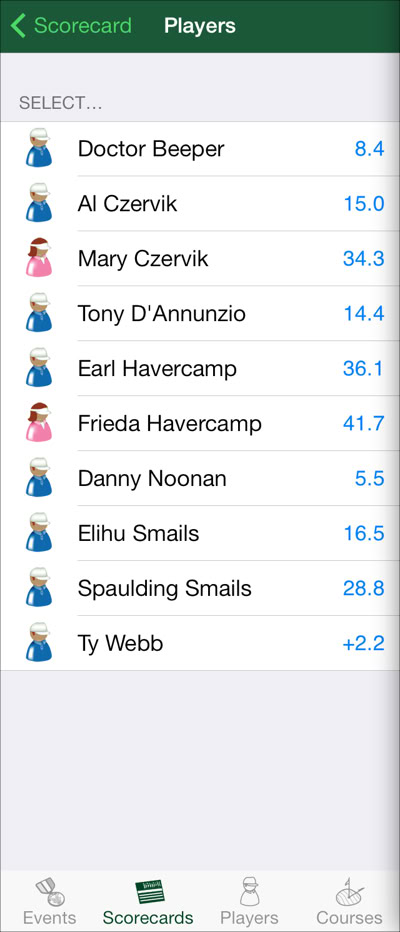
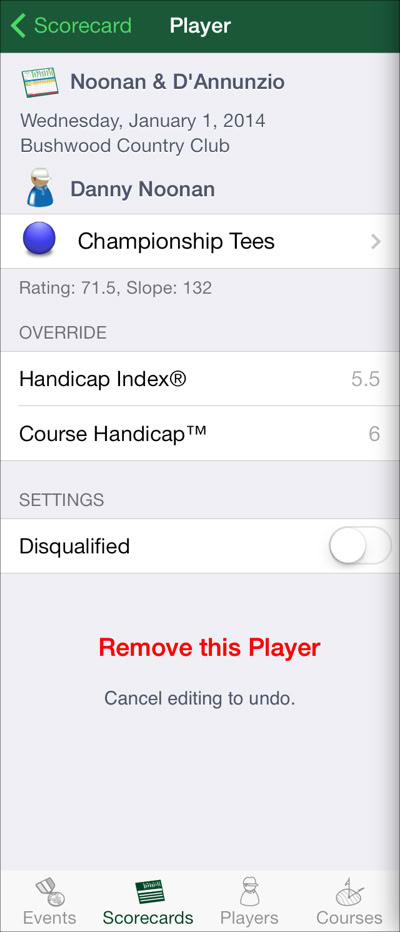
Add another player to the scorecard or edit information about an existing player. Then, repeat for each player.
Provide any special settings for the scorecard.
Continue until the scorecard is complete - with the players and teams you need, then tap Save to make any additions, deletions or changes permanent. Tap Cancel to leave the scorecard unchanged.
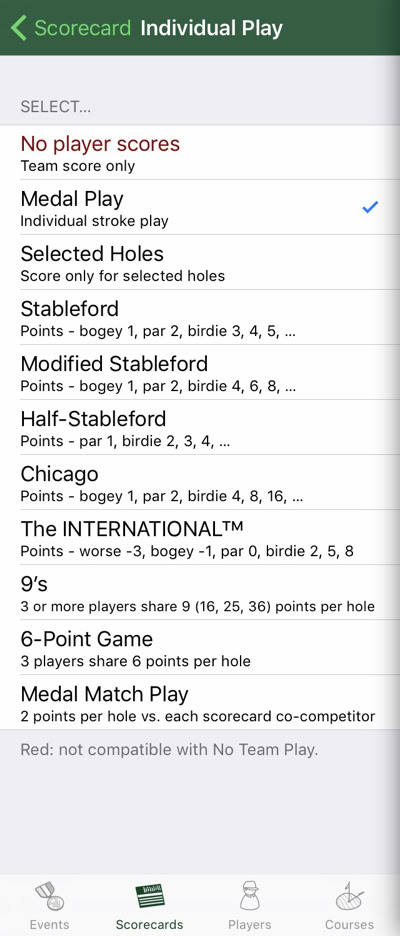
Indicate how scores for players are determined.
Player scores are always entered as actual strokes taken. The Scoring Machine uses this selection to calculate competition scores or points.
Some forms of team play (Foursomes, Scramble, and others) don’t require individual player scores.
Go back to continue editing the scorecard.
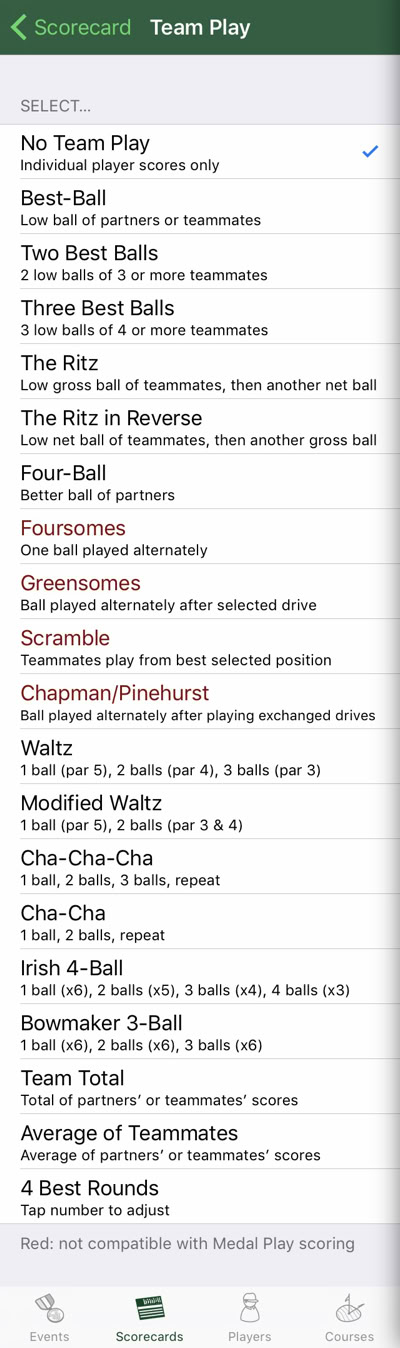
Indicate how team scores (if any) are determined.
Usually, The Scoring Machine calculates team scores based on the selection.
For some forms of team play (Foursomes, Scramble, etc.), team scores are entered directly on the scoreboard.
Go back to continue editing the scorecard.
The Scoring Machine does all the work – calculating the appropriate handicap allowance for the competitors and applying strokes in the right places.